Connect Webflow to GeoCopy
GeoCopy publishes to a Webflow CMS collection using the Webflow Data API. You need a Site API token (not your Webflow login password), plus your Site ID and Collection ID. See Webflow's site token docs.
Before you start
- You must be a site administrator to create API tokens.
- Your blog collection should use field slugs GeoCopy expects (see Collection fields below).
Steps
1. Open Site settings
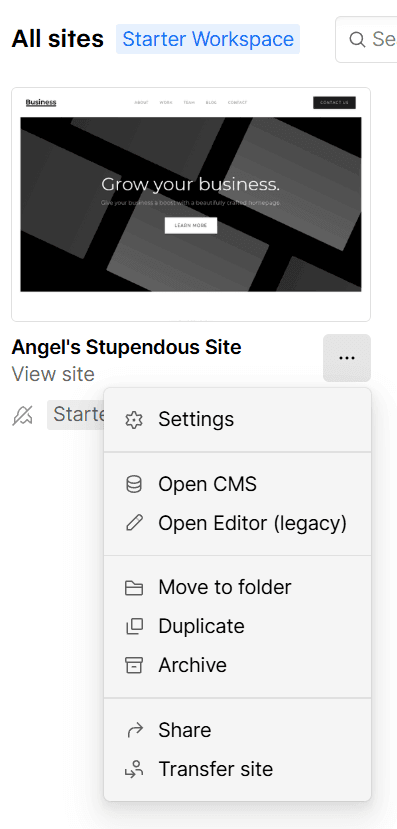
- In the Webflow Dashboard, find your site.
- Click the ⋯ menu on the site card and choose Settings.
2. Go to API access
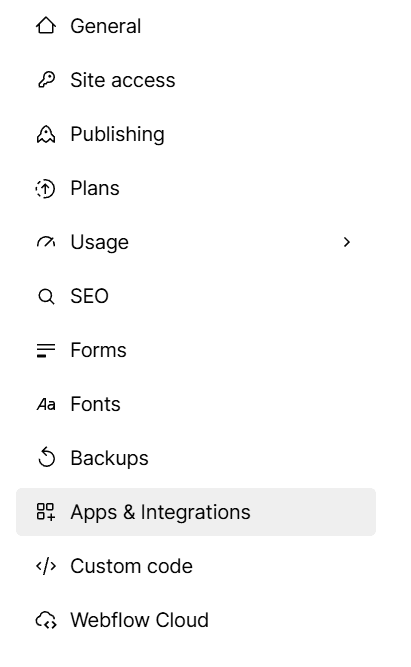
- In the left sidebar, select Apps & integrations.
- Scroll to the API access section.

3. Create the token and set permissions
- Click Generate API token, name it (e.g.
GeoCopy). - Required scopes:
- CMS → Read and write
- Assets → Read and write (featured images)
- Sites → Read (optional if you paste the hex Site ID from General)
- Sites → Publish (only for live publish, not draft-only)
- Click Generate token and copy the token immediately. You cannot view it again.

4. Copy your Site ID
In the same Site settings screen, open the General tab (default). Webflow shows your Site ID there. It is a 24-character hex string (e.g. 680e63e98c9a982ac9b8b741).
Do not use the slug from your public URL (angels-stupendous-site-739303.webflow.io). That subdomain is not the API Site ID. If you only have the slug, GeoCopy can try to resolve it when you connect, as long as your API token can list sites.
5. Find your Collection ID
- Open CMS and select your blog collection (e.g. Blog Posts).
- Open Collection settings. The Collection ID is in the URL or settings panel (another 24-character hex string).
6. Connect in GeoCopy
- Go to Portal → Integrations → Webflow and click Connect.
- Paste:
- Site URL — your public site (e.g.
https://www.example.com) - API Token — from step 3
- Site ID — from step 4
- Collection ID — from step 5
- Site URL — your public site (e.g.
- Click Connect. GeoCopy verifies access before saving.
Collection fields
GeoCopy writes to these CMS field slugs. If your collection uses different names (e.g. post-body instead of content), rename fields or create a collection for GeoCopy with the slugs below.
| GeoCopy | Field slug | Type |
|---|---|---|
| Title | name | Plain text |
| URL slug | slug | Plain text |
| Body | content | Rich text |
| Excerpt | excerpt | Plain text |
| Featured image | featured-image | Image |
| SEO title | seo-title | Plain text |
| SEO description | seo-description | Plain text |
Revoke access
In Site settings → Apps & integrations → API access, revoke or delete the GeoCopy token.
Troubleshooting
- 403 Forbidden — Token is missing a scope. Revoke it and generate a new token with CMS → Read and write (required). Webflow cannot add scopes to an existing token.
- Connection failed / 401 — Wrong token, revoked token, or missing CMS read scope.
- Publishing fails / 422 — Collection field slugs do not match the table above.
- No API access section — You need site administrator permissions.
- Drafts only, not live — Add Sites publish permission to the token, or publish manually in Webflow.
Also connecting WordPress? See Connect WordPress.